
AI video can make training content faster to produce and easier to update, but it only teaches well when instructional design, accuracy review and accessibility come first. The generation tool is the smallest decision. What a learner should be able to do afterwards, and whether every frame is correct and accessible, matters far more.
Begin with the learning outcome, not the tool
Write one sentence per video that starts “After watching, the learner can…”. If you cannot finish that sentence, the video is information, not training. Short, single-outcome videos are easier to review, update and reuse than a long omnibus piece.
Then choose the format that fits the outcome:
| Outcome | Likely format |
|---|---|
| Recognise a concept | Short animated explainer |
| Follow a procedure | Screen recording or step-by-step demonstration with on-screen steps |
| Make a judgement | Scenario video that pauses for a question |
| Remember a policy | Brief summary video linked to the written policy |
AI generation suits stylised explainers, illustrated scenarios and voiceover. It is a poor fit when the footage must show a real piece of equipment, a real interface or a real person doing a real task accurately. For those, film or capture the real thing. The real limitations of AI-generated video explains where generated imagery struggles, including text, hands and fine detail, which matter in instructional shots.
Design principles worth applying
Research on multimedia learning, commonly associated with Richard Mayer, offers practical rules: remove extraneous material, signal what is important, and break content into manageable segments. Treat them as design guidance rather than guarantees, and test with real learners.
In practice:
- Cut decoration that does not explain anything. A flashy transition is a distraction, not a lesson.
- Highlight the key term or step as it is spoken, with a short on-screen label.
- Split content into short segments with a clear title and a recap.
- Keep narration and on-screen text consistent so they do not compete.
Build an accuracy review into the workflow
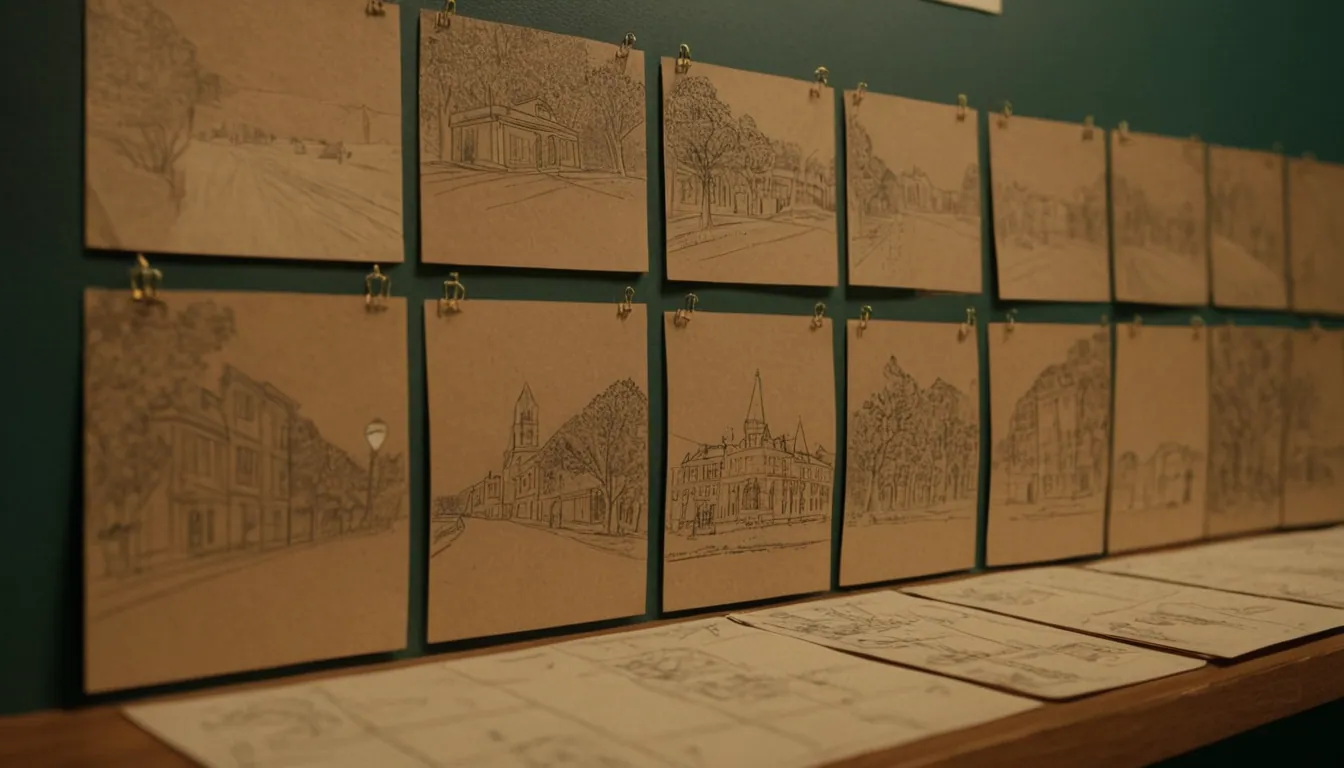
Generated visuals and scripts can contain confident errors: a wrong label, an impossible mechanism, a misspelt term, a procedure in the wrong order. The same discipline used for storyboarding a commercial helps here: approve the script and storyboard before generating anything, then review the output against them.
A workable review sequence:
- A subject matter expert approves the script line by line.
- The storyboard is checked for visual accuracy before generation.
- The generated clips are reviewed frame by frame for errors, including text inside images.
- A learner from the target audience does a trial run and notes confusion.
- A named owner records the version and date, and a review date for when the content may go stale.
If the content describes safety procedures, regulated practice or compliance obligations, have the responsible person sign off. A polished video makes an error look authoritative.
Accessibility is part of the job
The W3C Web Accessibility Initiative explains that for pre-recorded video with audio, captions are required at WCAG Level A, and that automatic captions do not meet the requirement unless they are fully accurate, which usually means significant editing (W3C on captions). Captions and transcripts contain the same text, so one can be used to produce the other.
For visual content, WCAG accepts either audio description or a descriptive transcript for pre-recorded video at Level A, and requires audio description at Level AA (W3C on audio description). Write your script so the narration describes what matters on screen, which reduces how much separate description you need.
Checklist before release:
- Edited captions, not raw auto-captions.
- A transcript beside the video.
- Narration that carries the meaning of visuals, or an audio description track.
- Readable on-screen text with sufficient contrast.
- No information conveyed by colour alone.
Disclosure, rights and consistency
Tell learners when a presenter or voice is synthetic, especially if a real person’s likeness or voice is imitated. Obtain consent for any real person’s likeness or voice, and check the licence terms of the tool and any music. Keep a consistent look and voice across a course so the production values do not distract. For wider guidance on brand use, see AI video production for brands.
Where Radiance Impact fits
Radiance Impact’s Studio produces explainer and short-form video, animation, and voice and sound. If you are scoping a training video series, you can explore /studio and send the learning outcomes through /contact.
Sources
- Captions/Subtitles, Making Audio and Video Media Accessible, W3C Web Accessibility Initiative
- Audio Description of Visual Information, Making Audio and Video Media Accessible, W3C Web Accessibility Initiative