Yes, AI can often remove or replace a video background without a green screen, and for simple shots it can be good enough to deliver. It is least reliable on fine hair, transparent or reflective objects, fast motion and strong shadows. If the shot matters and the subject is difficult, shooting against a properly lit screen is still the dependable choice.
What AI matting actually does
Rotoscoping is the traditional job of separating a subject from its background frame by frame. AI tools automate it by recognising a subject and tracking a mask through the clip. Editing suites now include this as built-in features, and standalone tools offer it as a service.
The important point is that the AI is guessing where the subject ends. A green screen gives software a known colour to remove, so the edge is calculated. AI matting infers the edge from shapes and context, and that inference can fail in predictable places.
What a real comparison shows
Editor and trainer Larry Jordan compared AI-assisted masking in Final Cut Pro, Premiere Pro and DaVinci Resolve using the same clips, including hair and a moving elephant. His findings are specific:
- Premiere’s Object Mask struggled most with hair, concluding that “No choice is good enough to create a clean mask.” It offers Smooth and Sharp edge settings, but without negative feathering, feathering made hair edges more obvious.
- Final Cut Pro looked cleanest on hair after adjustment, leaving a halo that disappeared when the mask was tightened, but struggled with strong shadows and with separating the elephant from a similarly coloured fence post.
- DaVinci Resolve’s initial hair edges looked wrong but improved after raising Quality to Better and adjusting radius, blur and clean black settings. It tracked the moving subject best but took about twice as long, and its Magic Mask 2 requires the Studio version.
Read the full test at Compare AI-assisted masking in Final Cut, Premiere and Resolve. It is a single editor’s test on specific software versions at one point in time, so treat it as an illustration of the failure types, not a ranking that will hold forever.
Where AI matting struggles
| Problem | Why it happens | What to do |
|---|---|---|
| Fine hair and fur | Wisps are semi-transparent against the background | Tighten the mask, add subtle edge treatment, or shoot a screen |
| Glass, water, smoke | Transparency means the background shows through the subject | Plan to shoot a screen, or composite on set |
| Motion blur | Blurred edges blend subject and background | Use a faster shutter speed, or accept a softer composite |
| Hard shadows and similar colours | The AI cannot separate subject from lookalike objects | Change lighting, clothing or background tone |
| Fast or complex movement | Tracking drifts, limbs vanish or flicker | Place extra tracking points, clean up by hand, or shoot a simpler take |
When AI matting is a good choice
- The subject is a person or object with a clear outline and moderate hair.
- The camera is steady and lighting is soft and even.
- The new background is similar in light and colour to the original, which hides small edge errors.
- The clip is for social or web use, where compression and screen size forgive minor flaws.
- You have no way to re-shoot, such as archive footage or a one-off event.
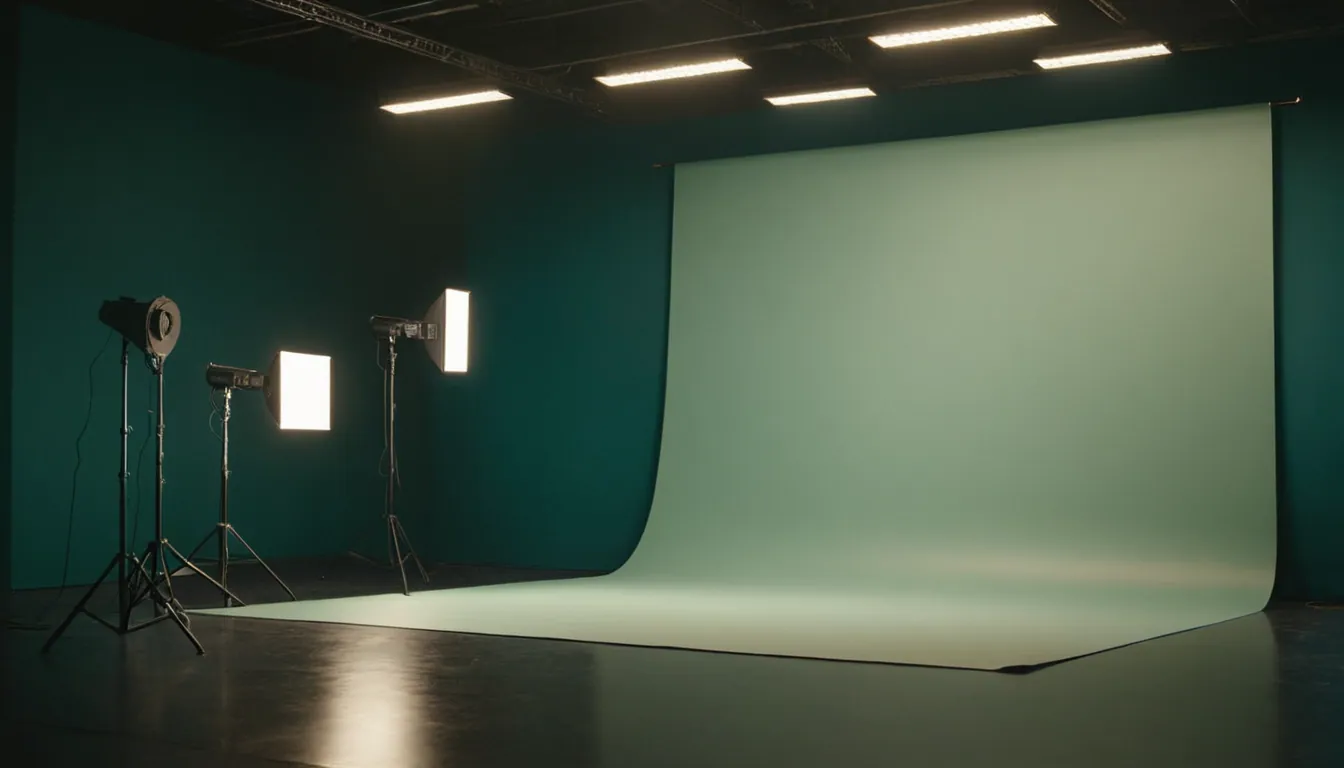
When to shoot a green screen
- A hero shot in a commercial where edge quality will be scrutinised.
- Hair, glass, liquid or smoke in frame.
- Fast action or heavy motion blur.
- A background that must change dramatically in lighting or colour.
- A long sequence, where per-shot manual cleanup would cost more than a screen.
A screen does not make keying automatic. Larry Jordan’s article on one- and two-colour keys in DaVinci Resolve 20 describes aiming for a matte that is pure black and white with no grey, since grey means semi-transparency and causes fringing, then refining with despill and matte shrink. Keying still needs even lighting, spill control and a subject separated from the screen. The advantage is predictability rather than perfection.
A practical workflow if you are going without a screen
- Light the subject softly and evenly, and separate subject from background by colour or tone where possible.
- Keep the camera still and use a faster shutter speed to limit blur.
- Choose a tool, test five seconds, and check the edges at full size.
- Refine only where needed, and keep the original clip underneath so you can patch missing parts.
- Check the result after your platform’s compression, not just in the editor.
- Decide in advance what the fallback is if the test fails: re-shoot with a screen, or simplify the shot.
Decide early, because re-shooting is expensive
The cost of discovering a failed matte after the shoot day is far higher than a screen on set. For commercial work, build the test into pre-production. Our articles on the real limitations of AI-generated video in commercial production and AI commercial production versus traditional filming cover how to weigh these choices across a whole project, and AI video production for brands is a good starting point for the wider picture.
Where Radiance Impact fits
Radiance Impact’s Studio handles AI commercials, post-production and short-form video. If you are planning a shoot and unsure whether to use a screen, see /studio or contact us.
Sources
- Compare AI-assisted masking in Final Cut, Premiere and Resolve, Larry Jordan
- Create a one- or two-color key in DaVinci Resolve 20, Larry Jordan